

Creating Categories for Display Names
Using the Category feature, Real-Time Designer can map large quantities of technical information on applications and the pages within it, and translate this technical information into information that can be understood and used to benefit the business through generated reports.
There are two default categories:
Business Related
Uncategorized
You can use these default categories or create other categories that can be selected for each Application or Page.
Using categories, you can:
Create a list of categories for the Display Names, which can be used as filters when creating and running reports.
Select a category for each application or page.
Guidelines for Assigning Categories to Display Names
Consider the following when assigning categories to display names:
Any application/page display name that is not specifically categorized is, by default, categorized as Uncategorized, and appears in the reports under the category Uncategorized.
Any application/page display name can be included in more than one category. No other category can be selected together with Uncategorized.
Applications and pages can have different categories as they may have different display names. In the database, application and page categories are separated into separate entries. In any categorized report, only one category is represented to avoid duplicate counting.
Categorized reports first show page categories. If there are no page categories, then the application categories are shown. If there are no application categories, then the Uncategorized category is shown.
Do not assign more than one category to a display name. Selecting multiple categories per display name, may create duplication in the reports.
The following technical information on Applications and URL's is collected in the Real-Time Server:
CRM Application
Facebook.com
Excel Application: Daily work tasks
Excel Application: Trip to China
Using the category feature, this information is categorized into the following categories:
Business Related category:
CRM Application
Excel Application: Daily work tasks
Personal category:
Facebook.com
Excel Application: Trip to China
By using the category feature in this way, the business is able to not only map the display name of an application and the pages within it, but also to filter the applications and pages using the category feature.
By doing so, the business is able to view this information as comprehensible lists in generated reports and to draw correct and educated conclusions.
To create a Category List for Display Names:
| 1. | In the Administration area, navigate to Desktop Process Monitor, then click on Display Names. |
| 2. | In the middle pane, select the Root folder. |
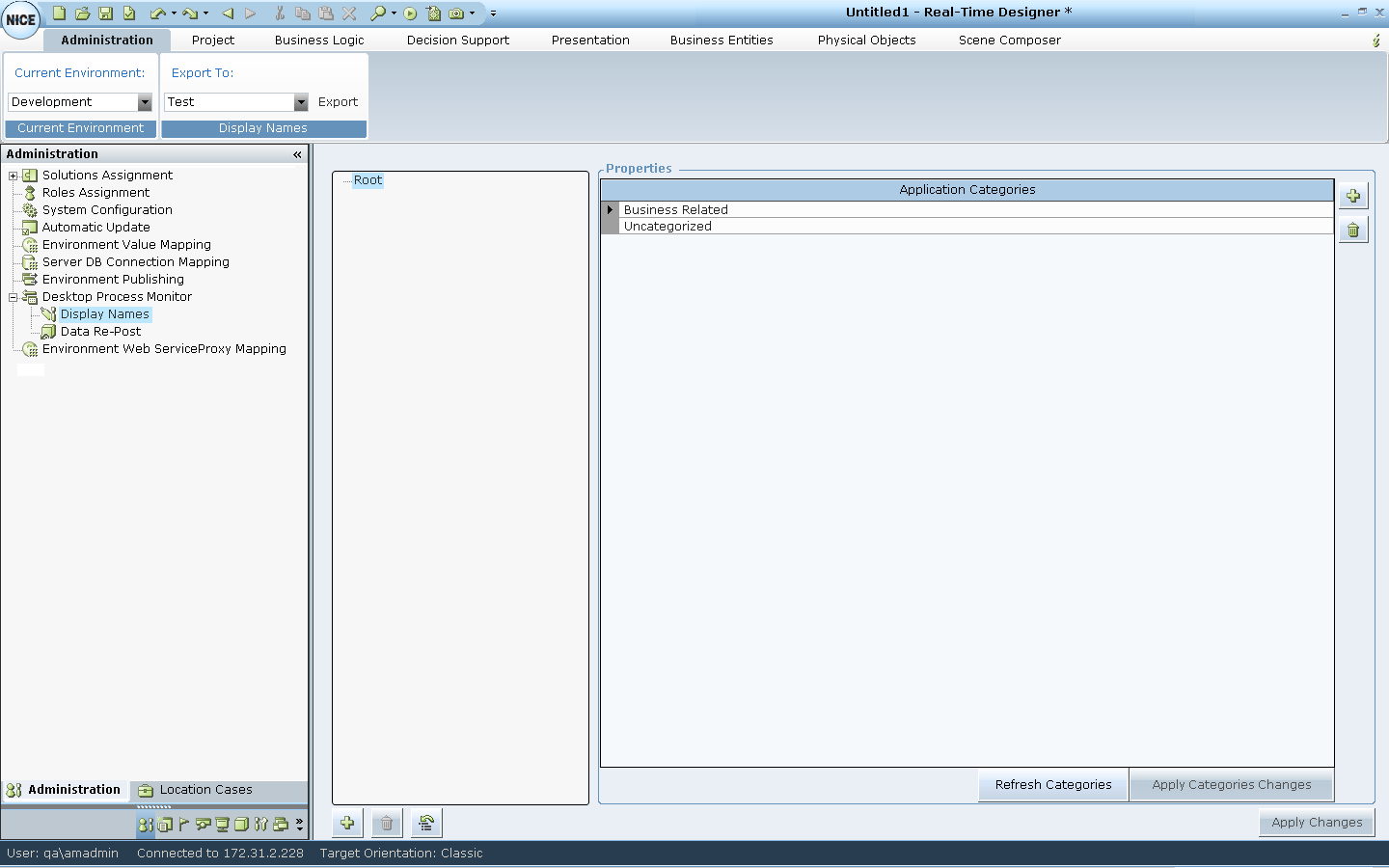
| 3. | In the right pane, in the Application Categories area, click  . . |
A text line is added below.

| 4. | In the text line, enter a meaningful category name. |
| 5. | Repeat Step 3 to Step 4 for each category that you need to create. |
| 6. | After creating all the required categories, click Apply Categories Changes , to save the changes. |
| 7. | The categories you create are available for selection for each Application or Page under the Display Names Root folder. |
| 8. | To delete a category that you created, select the category and click  . . |
